How to Fix MOV Files Not Playing on PC? [2026 Complete Guide]
MOV is a popular video file format, mainly known for its high-quality video storage, editing flexibility, and support for multiple data tracks. While MOV works seamlessly on macOS, Windows systems often struggle due to codec limitations and compatibility issues. Sometimes you may face issues when these MOV files fail to play on your PC. Whether your videos won’t play at all, show only audio, or display errors like “codec not supported”, don’t worry – there’s always a chance to make them playable.
In this guide, we’ll explore the reasons MOV files fail to play and quick methods to repair them. Let’s get started!
Why Your MOV Files Won’t Play? [Common Reasons]
Before you apply any method to repair MOV files, it’s important to understand why your videos aren’t playing. Most MOV playback problems fall into these categories:
- Missing or Unsupported Codecs: MOV files rely on codecs like H.264 or HEVC. If your PC doesn’t support the codec used in the file, playback will fail.
- Outdated Media Player: Sometimes, outdated versions of video players (like Windows Media Player) don’t support modern MOV formats or codecs and lead to video playback errors.
- Corrupted MOV File: If your MOV videos are damaged due to incomplete downloads, transfer errors, or storage issues, they may display playback errors.
- File Compatibility Issues: Some MOV files created on Apple devices (especially HEVC format) don’t play properly on Windows.
How do I Fix MOV Files Not Playing on PC? [Quick Fixes]
When you find your MOV videos are not playing properly, it’s important to immediately proceed with adequate MOV repair workarounds. Go with the below methods one by one to make your videos playable again:
Method 01: Try a Different Media Player
Sometimes the issue is with your media player, which prevents your MOV videos from being played properly. For this, you can try following alternatives:
- VLC Media Player (best overall)
- KMPlayer
- PotPlayer
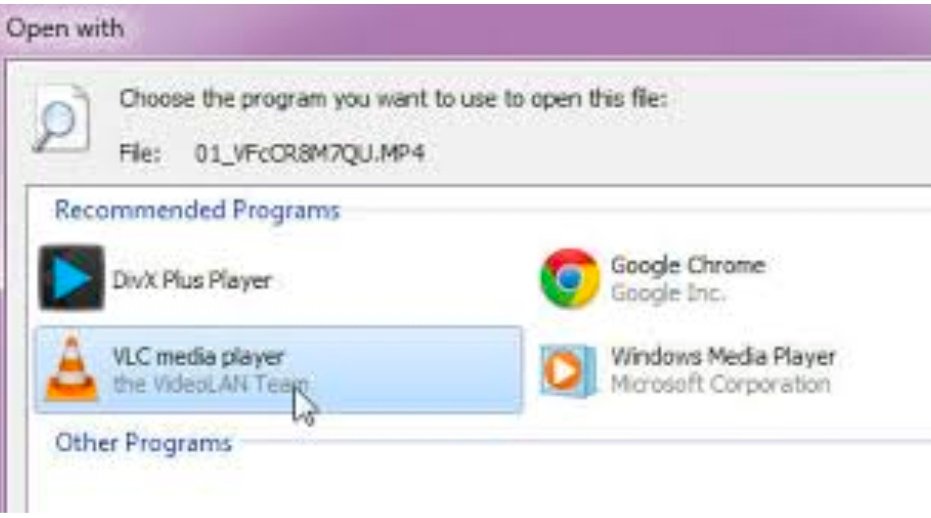
These players come with built-in codecs and support almost all formats.
Method 02: Update Your Media Player
If you’re using an outdated version of Windows Media Player or any other video player, it may show errors while playing MOV videos. In such cases, updating your player can resolve the issue. Here’s what you need to do:
- Firstly, launch your video player (e.g., Windows Media Player or VLC Media Player).
- Go to the Settings / Help / About section and select “Check for Updates”.
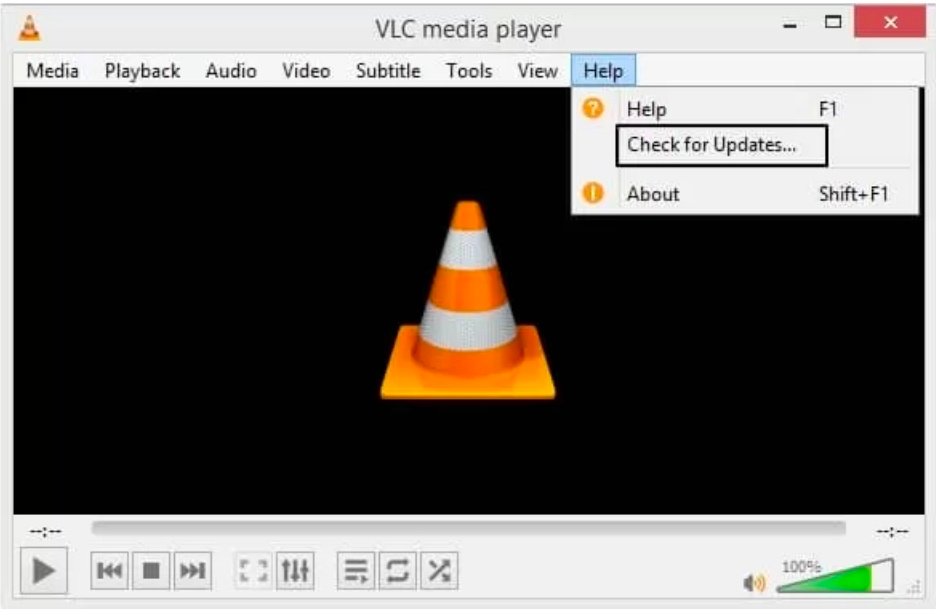
- Download and install the latest version on your PC.
- Once done, restart the player and try playing the MOV file again.
Method 03: Install Missing Codecs
As mentioned above, codecs play a very important role in the smooth playing of your video files. If you’re getting errors like “Codec required” or “Format not supported” while playing your MOV videos, then your system lacks the required decoder. To avoid such issues, you can follow the below steps to install the latest codecs on your device:
- Download a trusted codec pack like K-Lite Codec Pack from the official site.
- Run the installer and choose Standard/Recommended settings.
- Wait till the installation process is complete.
- Restart your PC and check if MOV videos are now playing smoothly.
Method 04: Repair Damaged MOV Videos Using VLC Player
If your MOV video file is severely corrupted, you may encounter issues while playing it on any video player. In such cases, you can try repairing it using VLC Media Player, a versatile tool that not only plays videos but also helps fix damaged or corrupted files across multiple formats. All you have to do is:
- Launch VLC media player on your PC.
- Go to Tools, select Preferences and then click on the Input / Codecs tab.
- Find the “Damaged or incomplete AVI file” option and select “Always Fix” from the dropdown.
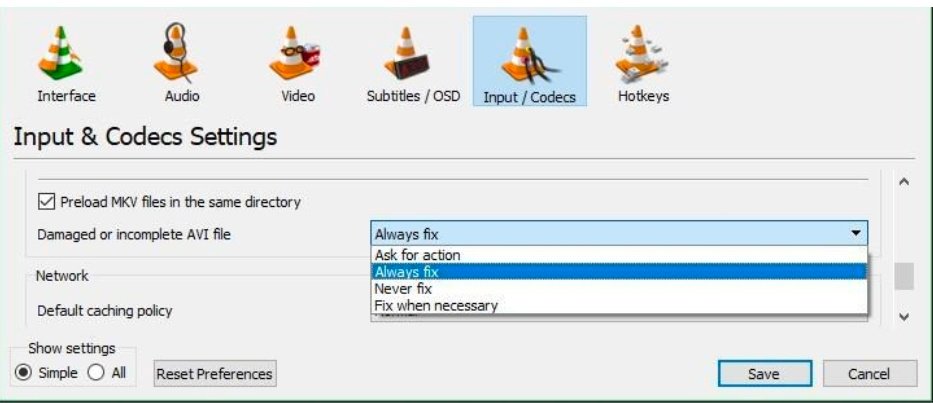
- Click Save to save the changes and then restart VLC.
- Now open your MOV file and check if it plays properly.
Note: This method works for minor corruption. For severely damaged files, you may need a dedicated MOV repair software.
Fix MOV Playback Issues Using Online Video Repair Tool
If the above DIY fixes fail to make your MOV videos playable, you should try repairing them using online video repair. Tools like Stellar Repair for Video Online allow you to fix corrupt or damaged video files directly from the browser, i.e., without any third-party software installation. As it works directly from your browser, it is a convenient option for users who want a quick and hassle-free video repair solution.
Key Features of Stellar Repair for Video Online:
- Supports repairing of damaged video files of several file formats, including MOV, MP4, AVI, and more.
- Simple and easy-to-use software makes it convenient for beginners.
- Ability to fix playback errors like freezing, black screen, or no audio.
- Works across different devices, including Windows and macOS.
- No installation required—works directly in your browser
Unlike traditional tools, this online solution eliminates the need for complex setup or technical knowledge.
Steps to Fix MOV Files Using the Stellar Repair for Video Online Tool
Follow the below quick steps to repair your damaged MOV files using this dedicated online video repair tool:
Step 1: Open any web browser on your Windows or Mac device and visit the official website of the Stellar Repair for Video Online tool.
Step 2: Click on the Upload Video button and select the damaged MOV file that you need to repair.
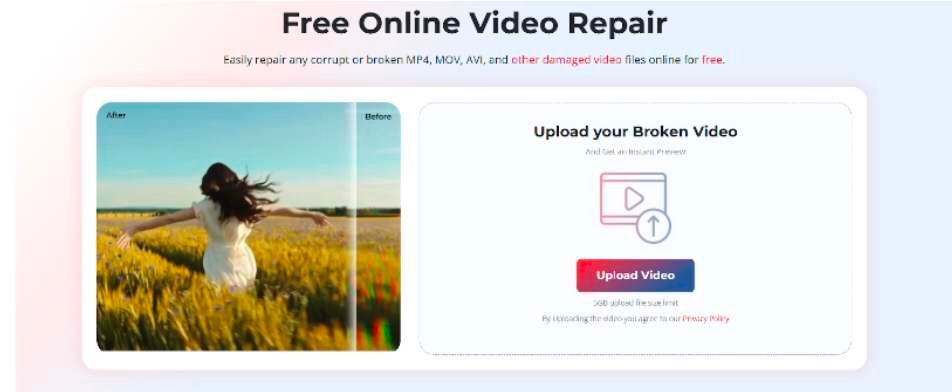
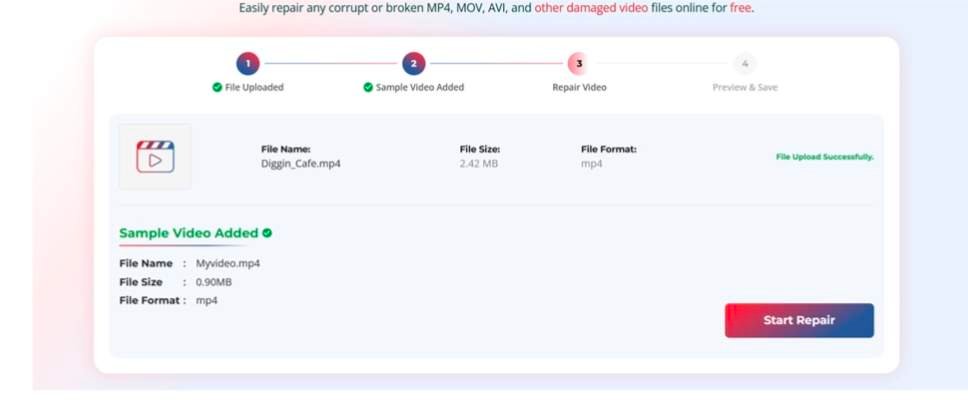
Step 3: Once uploaded, click on Start Repair to initiate the repair process. Wait till the software analyses and fixes your MOV file.
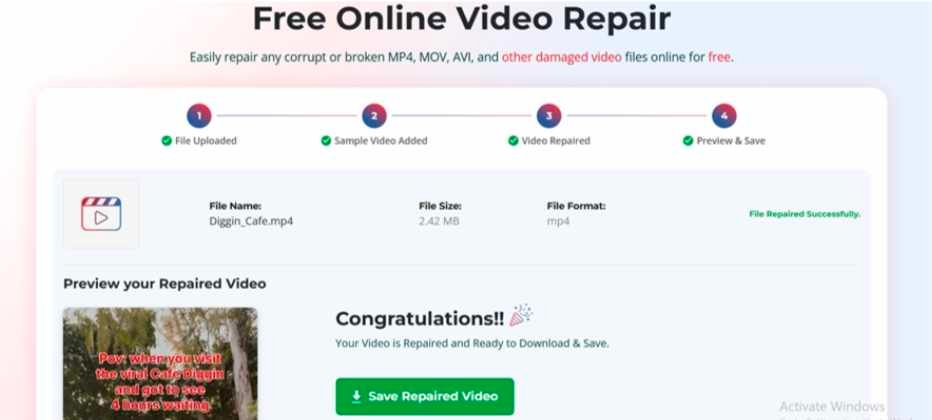
Step 4: After the repair, you can preview the video to check if the playback issues are resolved. If satisfied with the result, click Save Repaired Video to download the repaired video to your device.
Additional Tips for Better MOV Repair Results
Repairing corrupt or damaged MOV videos using the aforementioned repair workarounds is quite easy. However, you can also consider below tips to increase the chances of successful repair:
- Keep a backup copy of the original corrupted MOV file before starting the repair process.
- Avoid playing the damaged video multiple times, as it may worsen corruption.
- Ensure you’ve a stable internet connection while repairing videos using online repair tools.
- Store the video on a healthy drive without bad sectors or errors.
- Always use trusted tools like Stellar Repair for Video Online for better results.
Wrapping Up
MOV files not playing on PC is usually a compatibility or codec issue, not a serious problem. In most cases, you can try simple fixes such as changing the video file format, installing the latest codecs, etc., to fix your corrupt or damaged MOV files. If you want a quick solution, try online MOV repair tools like Stellar Repair for Video online, which allows you to repair damaged video files in a few simple clicks and even without any software installation.
By following a step-by-step method and acting quickly, you can recover and play your MOV files without losing valuable data.